
When something goes wrong, the first question is how to reach every employee quickly. If your organisation runs on Microsoft, Microsoft 365 Organizational Messages look like the obvious answer: they are built into the admin center, they appear inside Windows 11, and they include an urgent option described for exactly this kind of moment.
They are a useful tool, but they were designed for adoption nudges and IT notices, and Microsoft's own documentation sets out limits that matter in an emergency. This article explains what urgent Organizational Messages do, where they work well, where they fall short as an emergency alert channel, and how a dedicated tool such as Heed desktop alerts fills the gap. Every statement about the Microsoft feature comes from Microsoft Learn, read on 27 November 2026.
At a Glance
- Organizational Messages is a Microsoft 365 admin center feature for sending branded messages to Windows 11, Teams and email. It suits adoption nudges and IT notices.
- Urgent Organizational Messages appear only in the Windows 11 taskbar and notifications area, and are sent once to Microsoft Entra groups.
- Microsoft documents that Windows locations require Windows 11 Enterprise 24H2 or 25H2 on Entra joined or hybrid joined devices.
- Reporting counts views, clicks and dismisses but records no acknowledgement, and Microsoft notes possible start-up delays for tenants that have not sent a message recently.
- For emergencies, a dedicated tool such as Heed adds full-screen alerts on Windows and Mac, mobile and SMS reach, and named, timestamped acknowledgement.
Table of Contents
- What are Microsoft 365 Organizational Messages?
- What is an urgent Organizational Message?
- Where Organizational Messages work well
- Are urgent Organizational Messages enough for emergency alerts?
- Why are Organizational Messages not showing or delayed?
- Urgent Organizational Messages vs a dedicated desktop alert tool
- How does Heed send emergency alerts to Windows and Mac?
- Using both together
What are Microsoft 365 Organizational Messages?
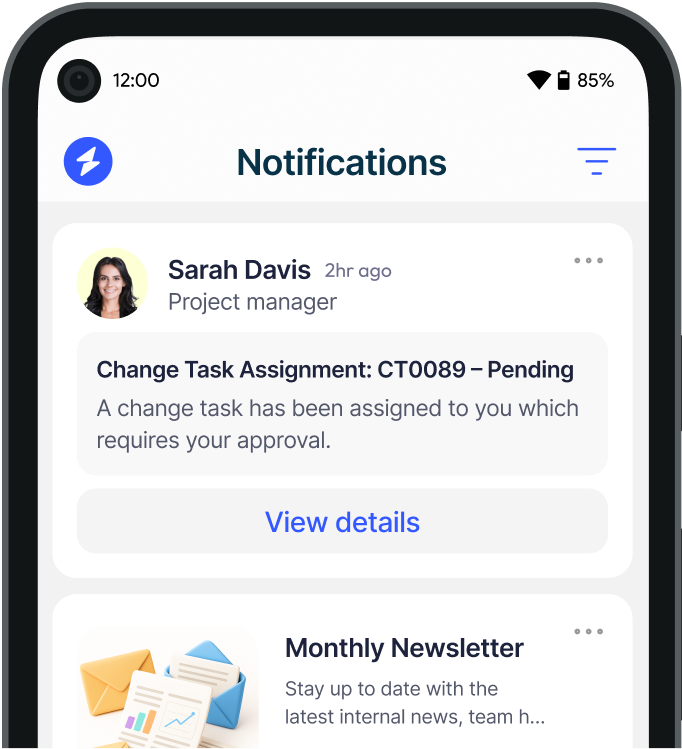
Organizational Messages is a feature of the Microsoft 365 admin center that lets authorised staff send branded messages to employees inside the products they already use. Supported locations include Windows Spotlight, the Windows 11 taskbar, the Notification Center, Microsoft Teams and email. Messages can be pre-made or custom, scheduled, and targeted at groups.
Microsoft describes the feature in its Organizational Messages documentation. Authors need the Organizational Messages Writer role, and custom messages must be approved by someone with the Organizational Messages Approver role before they are delivered. Pre-made messages need no approval. Reporting shows how many times a message was seen, clicked and dismissed, with a clickthrough rate and an export to CSV.
Most of the pre-made content is about adoption: welcoming people to Copilot, encouraging the use of Microsoft 365 features, or reminding employees about training. That is the job the feature was built for, and it explains several of the design choices covered below.
What is an urgent Organizational Message?
An urgent Organizational Message is a quick-send option for time-sensitive notices, such as an event on a corporate campus or the start of a service outage. It is sent as soon as possible and only once, to Microsoft Entra groups, and appears in two places only: the Windows 11 taskbar and the notifications area.
An administrator starts one from the Send urgent message button on the Organizational Messages page. The differences from a normal message are deliberate and documented:
- Two locations. Microsoft states that the only locations available are the Windows 11 taskbar and the notifications area. Teams, email and Windows Spotlight are not offered for urgent messages.
- Group targeting only. Only Microsoft Entra group targeting is supported. The advanced options for department, location and company are not available.
- No schedule. There is no start date, end date or frequency, because urgent messages are sent as soon as possible and only once.
- Online devices. Urgent messages do not reach devices that are disconnected from the internet. The system caches the message for up to 24 hours, and Windows attempts to show it once the device is back online.
Where Organizational Messages work well
It would be unfair to judge the feature only against a job it was not designed for. Used for its intended purpose, it has real strengths:
- It is already there. Fully customised messages are available with Microsoft 365 E3 or E5, Office 365 E3 or E5, or Windows Enterprise E3 or E5 licences, and the message appears in surfaces built into Windows 11.
- It looks native. A message in the taskbar or Notification Center feels like part of Windows, which suits low-pressure prompts.
- It has a second pair of eyes. The approval step stops one person sending a custom message to the whole organisation unchecked.
- It is good at nudges. Scheduled messages can reappear at a set frequency until the employee selects them, which works for adoption campaigns, training reminders and planned maintenance notices.
If the message is "the new expenses system goes live on Monday", Organizational Messages are a sensible choice. The question is what happens when the message is "leave the building now".
Are urgent Organizational Messages enough for emergency alerts?
For most organisations, not on their own. Urgent Organizational Messages reach only Windows 11 Enterprise devices that are joined to Microsoft Entra ID, are sent once, record no acknowledgement and can be held up by device policy. They suit IT notices, but an emergency alert needs wider reach and proof of receipt.
An emergency alert has to do three things: reach everyone affected, be impossible to miss, and tell you who has seen it. Measured against those tests, Microsoft documents seven limits.
- Windows 11 Enterprise only. Any message delivered to a Windows channel requires recipients to use Windows 11 Enterprise, version 24H2 or 25H2, and the taskbar experience requires update KB5094126. Devices on Windows 11 Pro or Windows 10 are outside that requirement.
- Entra joined devices only. Only Microsoft Entra ID joined and Microsoft Entra hybrid joined devices are supported.
- No Mac or mobile location. Both urgent locations are part of Windows 11. The documentation lists no macOS, iOS or Android location, so people on a Mac, on a phone or on a shop floor without a PC are not covered.
- A notification, not a takeover. The message appears in the taskbar and notifications area. It does not fill the screen or stay in front of other applications, and one administrator testing the feature for emergency alerts reported inconsistent delivery and found that a user's Windows notification settings affected whether the toast was visible.
- Sent once, with no acknowledgement. There is no repeat until the employee responds. Reporting counts messages seen, clicks and dismisses. It does not record that a named person confirmed the message, which is the evidence an incident review needs.
- A possible wait before the first message. Microsoft notes that, to support tenant-based targeting, the system might take up to 24 to 48 hours to initialise for tenants where a message was not scheduled in the past 30 days, and that a tenant recently onboarded to Microsoft Entra ID can wait 36 to 64 hours before the features can be used. The documentation does not say whether the first of these applies to urgent messages, so test the feature in your own tenant rather than assume it is ready.
- Policies can block it. Delivery depends on several Windows Spotlight and Organizational Messages settings being allowed, and Microsoft notes that certain policies, including Intune policies, can block delivery.
Two further points are worth planning for. Microsoft says custom messages must be approved by someone other than the author, and its documentation does not describe an exception for urgent messages, so check how approval works in your tenant before you rely on it out of hours. The feature is also part of Microsoft 365, so it shares a dependency with the email and chat tools it would be standing in for. Our post on the Microsoft 365 outage root cause explains why the channel that carries the warning should not depend on the platform that has failed.
None of this means the feature is faulty. Microsoft itself notes that system or user device conditions might prevent messages from being delivered as expected. It is a notification feature with documented boundaries, and those boundaries sit in the wrong place for a fire, a security incident or a site closure.
Why are Organizational Messages not showing or delayed?
The usual causes are documented requirements that have not been met. The device may not run Windows 11 Enterprise 24H2 or 25H2, may lack the required update, or may not be Entra joined. A policy may block delivery, the tenant may still be initialising, or the device may be offline.
If a test message has not appeared, work through the documented requirements in this order:
| Check | What Microsoft requires |
|---|---|
| Windows edition and version | Windows 11 Enterprise, version 24H2 or 25H2. For the taskbar, update KB5094126. |
| Device join | Microsoft Entra ID joined or Microsoft Entra hybrid joined. |
| Delivery policy | "Enable delivery of organizational messages (User)" allowed, and "Disable Cloud Optimized Content" set to Disabled. |
| Windows Spotlight settings | Windows Spotlight, Spotlight on Action Center, Windows Tips and Spotlight on the lock screen allowed, and none set to Block in a device restriction policy. |
| Network | The endpoints fd.api.orgmsg.microsoft.com and ris.prod.api.personalization.ideas.microsoft.com reachable through the firewall. |
| Tenant initialisation | To support tenant-based targeting, up to 24 to 48 hours if no message was scheduled in the past 30 days. Up to 36 to 64 hours before the features can be used by a tenant recently onboarded to Microsoft Entra ID. |
| Approval | Custom messages wait for an approver who is not the author. |
| Device online | Urgent messages do not reach offline devices. They are cached for up to 24 hours. |
Every row is a reasonable requirement for a managed notification feature. Together they add up to a long list of things that must be right, on every device, before an emergency starts. That is the practical difference between a feature you can use for alerts and a system built for them. Our guide to sending emergency alerts to employee computers covers what such a system needs in more detail.
Urgent Organizational Messages vs a dedicated desktop alert tool
| Urgent Organizational Messages | Heed | |
|---|---|---|
| Built for | Adoption nudges, IT notices and time-sensitive updates | Internal communication, including emergency alerts |
| Windows | Windows 11 Enterprise 24H2 or 25H2, Entra joined or hybrid joined | Own client for Windows, including virtual desktop environments |
| Mac | No location documented | Supported by the same client |
| Mobile and shared screens | No location documented for urgent messages | Mobile app, SMS and digital signage |
| How it appears | Taskbar and notifications area | Over any open application, up to full screen |
| Stays until acknowledged | No, sent once | Yes, for high-priority alerts |
| Proof of receipt | Seen, clicks and dismisses | Named, timestamped acknowledgement |
| Targeting | Microsoft Entra groups | Department, location or role, synced from Active Directory |
| Automatic triggers | Not documented | ServiceNow, Splunk, SCOM, Jira, API and webhooks |
| Delivery channel | Part of Microsoft 365 | Heed's own client, separate from email and chat |
| Hosting | Microsoft cloud | On-premises or regional cloud, ISO 27001 certified |
How does Heed send emergency alerts to Windows and Mac?
Heed sends emergency alerts through its own lightweight client for Windows and macOS, not through Windows notifications. An alert appears over whatever application is open, can fill the screen and stays until the employee acknowledges it. Each acknowledgement is recorded with a name and a timestamp, and the same message can reach mobiles and shared screens.
Heed is all-in-one internal communication software, and emergency notification is one of the jobs it does. The points that matter most beside the Microsoft feature are these:
- It cannot sit unnoticed in a corner. A full-screen alert takes over the display for an emergency such as a fire evacuation, and acknowledgement can be required before it is dismissed.
- It tells you who knows. Every acknowledgement is logged with a name and a timestamp, which gives you an audit trail of who received and confirmed the message.
- It reaches people away from a Windows PC. The same alert can go to the mobile app, by SMS and to digital signage.
- It is a separate channel. Alerts are delivered by Heed's own desktop client rather than by email or chat, which keeps the warning channel apart from the tools it may need to warn people about.
- It can start itself. Alerts can be triggered from ServiceNow, Splunk, SCOM and Jira, or through the API and webhooks, which is how IT outage notifications are usually sent.
- It runs where you need it. Heed is ISO 27001 certified and available on-premises or in a regional cloud.
Because Heed is used every day for news, surveys and campaigns, the client is already installed and employees already recognise it. Nothing has to be switched on, initialised or approved for the first time during an incident.
Using both together
This does not have to be a choice. A sensible split is:
- Organizational Messages for Microsoft 365 adoption, Copilot onboarding, training reminders and planned change notices to Windows 11 Enterprise users.
- A dedicated alert tool for anything where people must act quickly, where everyone must be reached whatever device they use, or where you need to show afterwards who confirmed the message.
Whichever tools you use, test them before you need them. Send a test alert to a real group, time how long it takes to appear, and count how many people you can prove have seen it. The emergency alert system guide sets out how to plan and test the wider system.
See how Heed puts an emergency alert on every screen and shows you who has acknowledged it. Book a demo