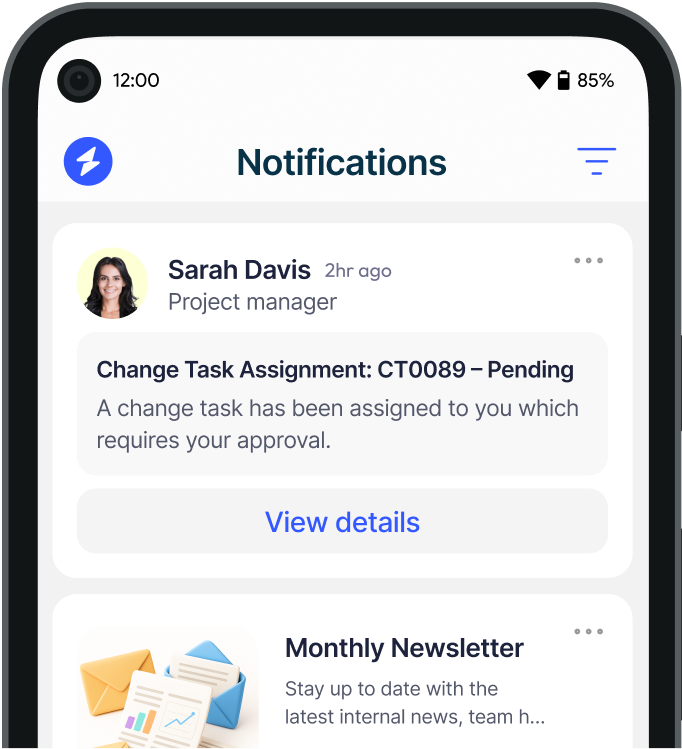

When a fire alarm sounds, a building is locked down or a critical system fails, the first question is simple: has everyone seen the instruction? For most office, contact centre and control room staff, the fastest route to their attention is the screen in front of them. An emergency alert system on computer puts an urgent message directly on that screen, over whatever is open, and records who has acknowledged it.
Many organisations still rely on email or a chat channel for this job. Those tools were built for conversation, not for interrupting people, and they rarely prove that a message was read. This guide explains how desktop emergency alerts work, what to look for in a system and the practical steps to send emergency alerts to employee computers with confidence.
At a Glance
- An emergency alert system on computer delivers a pop-up or full-screen message to employee desktops and laptops, over other applications and tracks acknowledgement.
- Email is a weak emergency channel: even in routine use, around one in four internal emails is never opened, according to ContactMonkey benchmark data.
- Setting one up means defining scenarios, syncing directory groups, deploying a desktop client, preparing templates, requiring acknowledgement and testing regularly.
- Desktop alerts work best as one layer of a wider plan that also reaches mobile, SMS and shared screens for staff who are away from a desk.
- Look for independence from email and chat, Active Directory targeting, Windows and macOS support, an audit trail and a deployment model that fits your security requirements.
Table of Contents
- What is an emergency alert system on a computer?
- Why email and chat fall short in an emergency
- How do you send emergency alerts to employee computers?
- What features should a desktop emergency alert system have?
- Reaching employees who are not at a computer
- Emergency alerts and your duties as an employer
- How Heed sends emergency alerts to employee computers
What is an emergency alert system on a computer?
An emergency alert system on a computer is software that pushes urgent messages straight to employee desktops and laptops. The alert appears over other applications, can fill the screen and stays visible until the employee acknowledges it. Administrators target alerts by group or location and see, in real time, who has confirmed receipt.
The difference from an ordinary notification is priority. A routine pop-up can be ignored or hidden by focus settings. An emergency alert is designed to interrupt: it sits on top of open windows, can span multiple monitors and, in its most severe form, takes over the whole screen until the employee responds. The desktop alert is the delivery mechanism; the emergency alert system is the wider set of templates, permissions and procedures that decides when and how it is used. Our emergency alert system guide covers that wider framework in more depth.
Why email and chat fall short in an emergency
Email remains the default internal channel which works well for news that can wait; It is a poor fit for instructions that cannot. ContactMonkey analysed more than 255,000 internal email campaigns and found an average open rate of 76%, which means roughly one in four messages was not opened at all. In an evacuation or lockdown, that gap matters.
There are three further problems:
- No proof of receipt. A delivered email does not show that anyone read the instruction, so incident teams cannot tell who still needs a phone call.
- Competition for attention. An emergency email lands in the same inbox as newsletters and meeting invitations. A chat message scrolls out of view within minutes in a busy channel.
- Shared failure. If the incident is an IT outage or cyber attack, email and chat may be unavailable at the moment you need them most. We explore this in what happens when the channel you use to report outages is the outage.
For a side-by-side comparison, see desktop alerts vs email for urgent communication.
How do you send emergency alerts to employee computers?
To send emergency alerts to employee computers, install a lightweight desktop client on every managed device, connect it to your directory so you can target groups and locations and prepare approved templates for each scenario. In an incident, an authorised sender selects a template, chooses the audience and sends. Acknowledgement tracking then shows who still needs to be reached.
In practice, the setup takes six steps.
1. Define your scenarios and severity levels
List the events that justify interrupting people: fire evacuation, severe weather, security threats, building lockdowns, major IT incidents and site closures. Assign each a severity level so that full-screen takeovers are reserved for genuine emergencies and stay credible. Our guide to types of emergency alerts offers a starting list.
2. Connect your directory
Sync Active Directory or Microsoft Entra ID groups so alerts can be targeted by department, location or role. A flood warning for one office should reach that office, not the whole organisation. Directory sync also keeps audiences current as people join, move and leave.
3. Deploy a desktop client to every managed device
Push the client to Windows and macOS machines through your normal software distribution tools, including virtual desktop environments. Confirm that it starts automatically and runs in the background, so a device that is switched on can receive alerts without the employee opening anything.
4. Prepare approved templates
Write each emergency message in advance, agree it with health and safety, security and legal teams, and store it as a template with the correct severity and format. In an incident, the sender should only need to confirm details such as location and time. Our emergency alert template resource includes wording you can adapt.
5. Require acknowledgement and agree who follows up
Set emergency alerts to require an acknowledgement before they close. Decide in advance who monitors the acknowledgement report during an incident and how unacknowledged staff are contacted, for example by a line manager or through another channel.
6. Test, then test again
Run scheduled test alerts so employees recognise the format and know what to do. Review delivery and acknowledgement data after each test, fix any gaps in device coverage and record the results as part of your emergency communication plan.
What features should a desktop emergency alert system have?
A desktop emergency alert system should deliver full-screen alerts that cannot be dismissed without acknowledgement, target recipients through your directory, run on Windows and macOS and keep a timestamped audit trail. It should also work independently of email and chat, integrate with monitoring tools and offer a deployment model that meets your security policy.
- Unmissable delivery: corner, centre-screen and full-screen formats, with full-screen alerts that stay in place until acknowledged.
- Acknowledgement tracking: named, timestamped records of who has seen and confirmed each alert.
- Directory targeting: audiences built from Active Directory groups, departments, locations and roles.
- Cross-platform clients: consistent behaviour on Windows, macOS and virtual desktops.
- Independence: delivery through the vendor's own client and infrastructure rather than through email or chat.
- Integrations: the ability to trigger alerts from tools such as ServiceNow, Splunk or Microsoft SCOM or through an API and webhooks.
- Deployment choice: regional cloud hosting or true on-premises deployment where data residency or network isolation is required, backed by recognised certification such as ISO 27001.
Reaching employees who are not at a computer
A computer-based system reaches people at their desks. It does not reach the engineer on a site visit, the warehouse team or the employee on a train. A complete plan adds further channels for the most severe alerts: mobile app notifications, SMS alerts for people without data access and digital signage for shared spaces and shop floors. Choosing a platform that sends to all of these from a single console, as described on our emergency notification page, means one decision reaches everyone rather than several teams sending separate messages.
Emergency alerts and your duties as an employer
In Great Britain, regulation 8 of the Management of Health and Safety at Work Regulations 1999 requires employers to establish procedures for serious and imminent danger and, so far as is practicable, to inform people exposed to that danger of the hazard. HSE guidance on emergency procedures also asks employers to consider how the alarm will be raised, including during night and shift working.
Neither source prescribes a particular technology. A desktop emergency alert system is one way to support those procedures, particularly where many staff work at screens and where the organisation needs a record of who was informed and when. It complements, rather than replaces, fire alarms and other physical warning systems.
How Heed sends emergency alerts to employee computers
Heed delivers desktop alerts through its own lightweight client for Windows and macOS, including virtual desktop environments. Emergency messages can appear as full-screen takeovers that remain until acknowledged and every acknowledgement is logged with a name and timestamp for your audit trail. Audiences sync from Active Directory and SAML, so alerts reach the right department, location or role. Alerts can be sent from the console or triggered from ServiceNow, Splunk, SCOM, Jira, the API or webhooks.
Heed is ISO 27001 certified and available as true on-premises software or in a regional cloud, which suits organisations with strict data residency or network requirements. You can read more on our security overview.
See how Heed puts emergency alerts on every employee screen, and proves who has seen them. Book a demo