Maintenance messages tell employees when scheduled maintenance will take a system offline, what they will lose access to and when it will be back. Most IT teams send one email and hope for the best, then field tickets from people who never read it. The scheduled maintenance templates on this page cover the full cycle, from advance notice to completion, including a dedicated system maintenance message and short versions for desktop alerts, tickers and lock screens. For the wider framework these messages sit within, see our emergency alert system guide.
A maintenance message is a planned notice that tells employees which system will be unavailable or degraded, when the work starts and ends, what they need to do beforehand and who to contact. It is sent before, during and after scheduled maintenance, so that planned downtime does not feel like an unexpected outage.
Scheduled maintenance is different from an incident. You choose the date, you know the impact in advance and you can tell people in good time. That makes poor communication harder to excuse: if staff lose unsaved work or turn up for a shift to find a system offline, the failure was in the message, not the maintenance. If the problem is unplanned, use our major incident communication templates instead.
A good scheduled maintenance message names the system, gives the start and end time with the time zone, describes the impact in plain terms, states any action people must take first, and says who to contact and when the next update will follow. Put the date, time and impact in the first line.
Avoid relying on the word "maintenance" alone. The GOV.UK Design System guidance on service unavailable pages advises against vague words such as "maintenance" or "improvements" and recommends stating the day, date and time the service will be available again. The same rule works inside an organisation: impact and time matter more to employees than the reason.
Replace everything in [square brackets]. The templates follow a scheduled maintenance window from start to finish. Each has a suggested channel; where a message is short enough for a desktop ticker or SMS, a short version is included.
Send to affected users about a week before work on a business-critical system, or one to two days before routine work.
Subject: Scheduled maintenance: [system] unavailable [day, date], [start] to [end] [time zone]
Hello,
[System] will be unavailable on [day, date] from [start time] to [end time] [time zone] while we [upgrade the server / apply security updates / move to new hardware].
What this means for you: you will not be able to [log in / submit requests / access files] during this time.
What to do beforehand: [save and close any open work / download files you will need / use (workaround)].
Who is affected: [all staff / users at (site) / (team)].
We will send a reminder the day before and confirm when the work is complete. If you have questions, contact [service desk, phone or channel].
[IT team name]
A short, all-purpose notice for any system: post it on the intranet or status page, send it as an all-staff message, or adapt it for the channels below.
Title: System maintenance: [system], [day, date], [start] to [end] [time zone]
Scheduled system maintenance will take place on [system] on [day, date] from [start time] to [end time] [time zone].
Impact: [System] will be [unavailable / read-only / slower than usual] for [all users / users at (site) / (team)] during this time. [Other systems are not affected.]
Before the window: please [save your work and log out / finish any urgent (tasks) / use (workaround)] by [time].
Updates: we will confirm when maintenance is complete. If the work overruns, we will tell you before [end time].
Help: contact [service desk, phone or channel] and quote [reference].
Ticker or SMS version:
System maintenance: [system] unavailable [day] [start] to [end] [time zone]. Save work before [time]. Help: [service desk].
Schedule to run on affected devices for the week before the window, so the message is seen without anyone opening an email.
Headline: [System] offline [day, date], [start] to [end]
Supporting line: Save your work before [time]. Questions: [service desk].
Send to affected users 24 hours before the window. Use a standard pop-up, not a full-screen alert.
Title: Reminder: [system] maintenance tomorrow, [start] to [end]
[System] will be unavailable tomorrow, [day, date], from [start time] to [end time] [time zone].
Please [save your work and log out / complete any urgent requests] before [time].
Need help? Contact [service desk].
Ticker or SMS version:
Reminder: [system] offline tomorrow [start] to [end] [time zone]. Save work before [time]. Help: [service desk].
Display on the login page or as a banner inside the application from a few days before until the work is complete.
Banner: [System] will be unavailable on [day, date] from [start time] to [end time] [time zone] for scheduled maintenance. You will be able to use it again from [end time] on [day, date].
During the window: [System] is unavailable for scheduled maintenance. You will be able to use it again from [end time] on [day, date]. For urgent help, contact [service desk].
Send to affected users 10 to 30 minutes before the work begins.
Title: [System] maintenance starts at [time]
Scheduled maintenance on [system] starts at [start time]. Please save your work and log out now.
The system is expected back at [end time] [time zone]. We will confirm when it is available.
Ticker or SMS version:
[System] maintenance starts [time]. Save and log out now. Back by [end time].
Send before the announced end time, not after it, as soon as you know the work will take longer.
Title: [System] maintenance extended to [new end time]
The scheduled maintenance on [system] is taking longer than expected. We now expect it to be available again by [new end time] [time zone].
What to do: [continue to use (workaround) / hold any urgent requests until (time) / contact (team) if this affects a deadline].
Next update by [time].
Ticker or SMS version:
[System] maintenance extended. Now expected back by [new end time]. Next update [time].
Send to everyone who received the original notice, on the same channels.
Subject: [Cancelled / Rescheduled]: [system] maintenance on [original date]
The scheduled maintenance on [system], due on [original date] from [start] to [end], has been [cancelled / moved to (new day, date, start to end, time zone)].
[System] will be available as normal on [original date]. [If rescheduled: we will send a reminder the day before the new date.]
Thank you for planning around the original date. Questions: [service desk].
Send as soon as the system is confirmed working, on the channels you used for the reminder.
Title: [System] is available again
The scheduled maintenance on [system] is complete and the system is available again.
What has changed: [no visible change / new login page / (feature) is now available].
If anything does not work as expected, contact [service desk] and quote [reference].
Thank you for your patience.
Ticker or SMS version:
[System] is available again. Problems? Contact [service desk], ref [reference].
Give about a week of notice for maintenance on business-critical systems and one to two days for routine work, then remind people the day before and again shortly before the window opens. Send a completion message as soon as the system is confirmed working, and an overrun message before the promised end time.
This follows the guidance from network monitoring vendor Paessler on announcing scheduled maintenance, which recommends at least a week for critical systems, one or two days for smaller routine work, and more reminders as the impact grows. Publish your notice policy so employees know what to expect, and stick to it.
| When | Message | Template |
|---|---|---|
| About a week before (critical systems) or 1 to 2 days before (routine) | Advance notice | 1. Advance notice email; 2. System maintenance message; 3. Lock screen notice; 5. Login page banner |
| The day before | Reminder | 4. Reminder desktop alert |
| 10 to 30 minutes before | Starting now | 6. Maintenance starting now |
| Before the promised end time, if needed | Overrun | 7. Maintenance overrunning |
| As soon as the plan changes | Cancelled or rescheduled | 8. Cancelled or rescheduled |
| As soon as the system is confirmed working | Complete | 9. Maintenance complete |
Use email for the advance notice, a lock screen or banner for the days leading up to the window, and a desktop alert or ticker for the reminder and the start. Send the overrun and completion messages on the same channels as the reminder. Avoid relying on any channel that the maintenance itself takes offline.
| Message | Suggested channels | Why |
|---|---|---|
| Advance notice | Email, plus a scheduled lock screen or wallpaper notice | Gives detail people can refer back to, with a visual reminder for those who skip email |
| System maintenance message | Intranet or status page, plus an all-staff message | Gives everyone one place to check what is affected and when |
| Reminder | Standard desktop alert or desktop ticker | Seen on screen the day before, without opening an inbox |
| Login page or app banner | The affected application | Reaches people at the moment they try to use the system |
| Starting now | Desktop alert and ticker | Prompts people to save work in the minutes that matter |
| Overrun, cancelled, complete | The same channels as the reminder | People look for updates where they saw the last one |
Be careful when the maintenance affects the channel itself. If you are upgrading the mail server, do not rely on email to announce that it is back. Our article on communicating when the outage is the channel covers this in more detail.
Use maintenance message templates when the work is scheduled and you control the timing. Use incident templates when a service fails without warning. Scheduled maintenance needs advance notice and reminders; an incident needs immediate alerts and regular updates. If scheduled work fails or overruns badly, treat it as an incident from that point.
Many IT teams keep both sets ready and switch between them. A maintenance window that runs hours over the planned end time, or that breaks a dependent system, is no longer planned: move to the major incident communication templates and your incident process. For safety events such as evacuations or site closures, use our emergency alert templates.
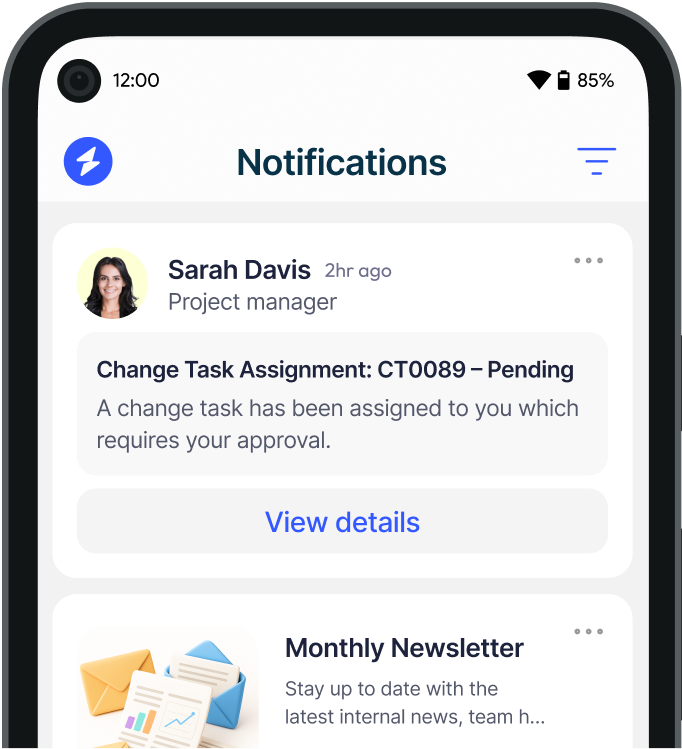
The templates above only work if people see them. Heed is an all-in-one internal communication platform that reaches employees across desktop, mobile and digital signage, so a maintenance notice does not depend on an inbox. You can send pop-up or full-screen desktop alerts, run a scrolling desktop ticker that can repeat until read, and schedule a corporate lock screen campaign to go live and expire on set dates ahead of a window.
Messages can be targeted by department, location or role through Active Directory and SAML groups, so only affected users are told. Acknowledgement tracking gives named, timestamped confirmation of who has read each alert, and alerts can be triggered from tools such as ServiceNow and Jira, or via API and webhooks. Heed is ISO 27001 certified and available on premises or in a regional cloud. To see how this fits a wider IT communication process, visit our major incident management solution. Want to see a maintenance notice as a live desktop alert? Book a demo.
See how Heed streamlines internal communication across desktop, mobile, and shared screens - so every message gets noticed.
We’ll walk you through creating, targeting, and tracking notifications in real time, tailored to your organisation’s goals.
Schedule a Demo
See how Heed works across your channels, sites and shifts, and get answers to the questions specific to your industry and team size.
Schedule a Demo


Talk to us about keeping your employees informed, engaged and inspired - book a call today!
Book a Call
Proudly connecting teams worldwide, enhancing communication, and boosting employee engagement for a unified workforce.


© Heed 2026 - All Rights Reserved